Analyzing Results
After the pipeline finishes, use recovar analyze to generate volumes, compute k-means clusters, create trajectories, and run UMAP.
Instructions below are tabbed for the CLI and the GUI.
Submitting an analyze job
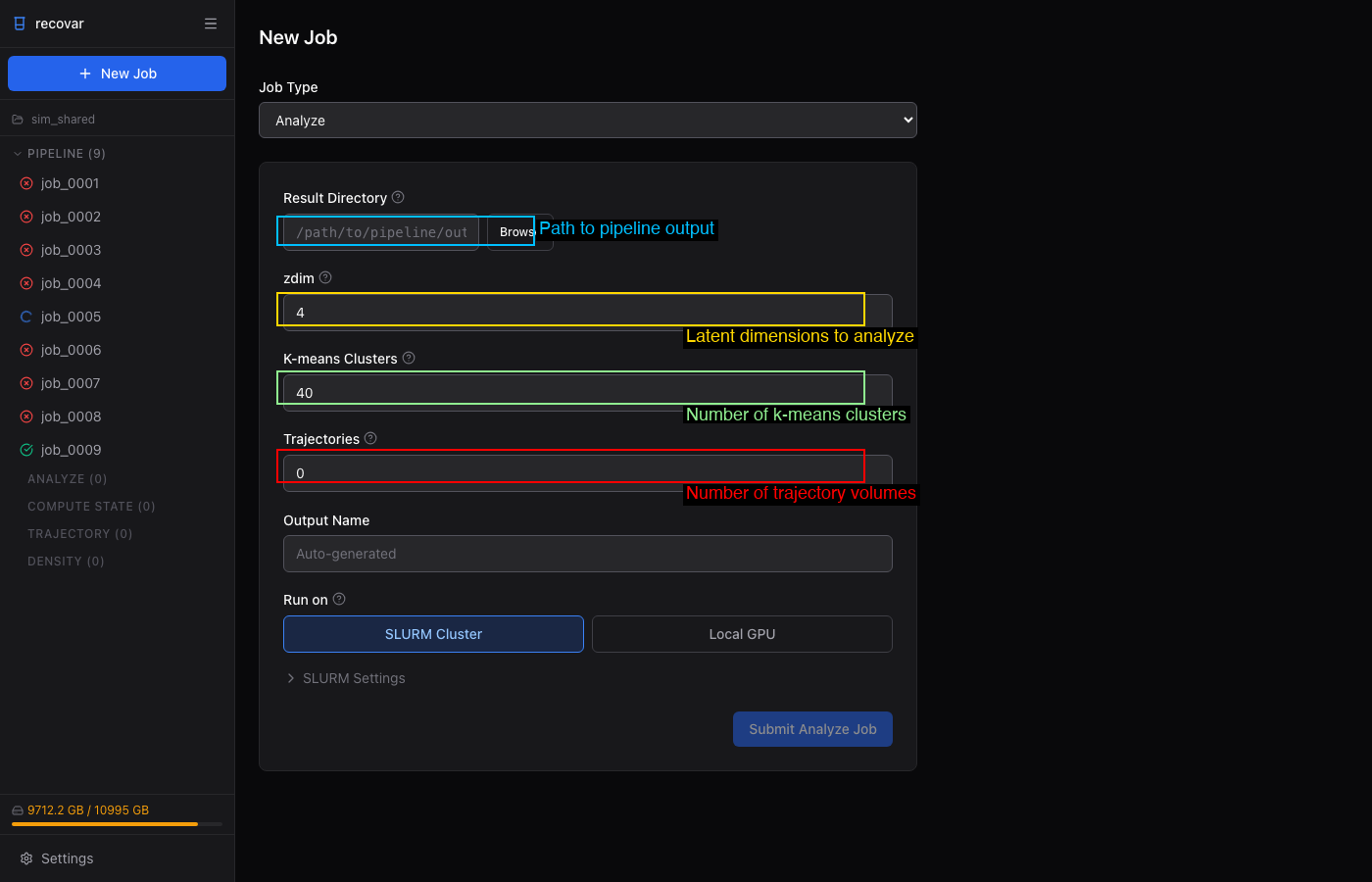
- From a completed pipeline job, click Analyze this pipeline output in Suggested Next Steps (auto-fills the result directory)
- Or click + New Job > Analyze and browse to the pipeline output directory
- Set zdim, k-means clusters, and trajectories
- Optionally expand Advanced to tune n-bins and maskrad-fraction (the kernel-regression knobs that trade resolution for speed)
- Click Submit Analyze Job
Quick Analyze
The Quick Analyze button submits the same job with n-bins=10 and maskrad-fraction=10, making the cluster-center volumes roughly 40x faster to compute at lower resolution. UMAP and k-means are unchanged.
This generates:
- K-means cluster centers and their volumes
- UMAP embedding of the latent space
- Trajectories between cluster pairs (if requested)
Results are saved next to the pipeline output, in result_dir/analysis_10/ (here result_dir is output). With --no-z-regularization, the suffix changes and results go to result_dir/analysis_10_noreg/.
Options
| Flag | Default | Description |
|---|---|---|
--zdim |
Auto | Latent dimension (single integer). If the pipeline produced only one embedding, it is used automatically; otherwise you must set this |
-o |
Auto | Output directory (default: result_dir/analysis_{zdim}/, or analysis_{zdim}_noreg/ with --no-z-regularization) |
--n-clusters |
20 | Number of k-means clusters |
--n-trajectories |
0 | Number of trajectories between cluster pairs |
--n-vols-along-path |
6 | Volumes per trajectory |
--Bfactor |
0 | B-factor sharpening |
--n-bins |
50 | Bins for kernel regression |
--maskrad-fraction |
20 | Kernel radius = grid_size / maskrad-fraction. Lower it for noisier data, raise it for low-resolution data |
--n-min-particles |
100 | Minimum particles per bin for kernel regression |
--skip-umap |
False | Skip UMAP (faster for large datasets) |
--skip-centers |
False | Skip generating cluster center volumes |
--lazy |
False | Lazy loading for large datasets |
--no-z-regularization |
False | Use unregularized latent variables (changes output suffix to _noreg) |
How to choose zdim
The algorithms are generally not very sensitive to the number of eigenvectors (PCs) — with one exception, density estimation (see below). For general exploratory analysis — seeing how many clusters are in the data, whether there are outliers, the overall distribution — zdim 20 is a typical choice.
Sometimes it is preferable to use as few PCs as possible while still capturing most of the variance. A reasonably reliable way to do this is to look at the eigenvolumes (in the GUI, or in the plots the pipeline writes): where they start to look like noise, you can drop those components.
For density estimation you typically need a focus mask and as few PCs as you can — up to 4 — and there it is particularly important to choose well.
What to inspect first after analyze
- Mean map — is the reconstruction sensible? Open
mean_filt.mrcin ChimeraX - Eigenvolumes — which show real structure, and which look like noise? The noisy ones can be dropped when picking zdim
- PCA scatter — isolated clusters or continuous gradients?
- K-means volumes — do the differences correspond to real density changes?
- UMAP — does it confirm the structure seen in PCA?
- Subsets — export only after visually inspecting volumes, not just scatter plots
Sampling many states
To sample many conformational states (e.g., 100-200), use --n-clusters=200 and --n-bins=10 for speed, then recompute selected states at higher resolution with compute_state.
Generating volumes at specific points
Use compute_state to generate volumes at specific coordinates in latent space:
The coordinates file is a text file with shape (n_points, zdim), readable by np.loadtxt. You can use the k-means centers from analyze:
recovar compute_state output -o volumes \
    --latent-points output/analysis_10/kmeans/centers.txt --Bfactor=50
Options
| Flag | Default | Description |
|---|---|---|
--latent-points |
Required | Coordinates file (.txt) |
--Bfactor |
0 | B-factor sharpening |
--n-bins |
50 | Bins for kernel regression |
--maskrad-fraction |
20 | Kernel radius = grid_size / maskrad_fraction |
--n-min-particles |
100 | Minimum particles for kernel regression |
--particles |
Same | Different particle stack for higher resolution |
--datadir |
Same | Path prefix for particle paths |
Fast volume estimation
Volumes come from kernel regression, and the speed/resolution tradeoff is set by --n-bins and --maskrad-fraction. Lowering both (e.g. --n-bins 10 --maskrad-fraction 10) makes volumes roughly 40x faster to compute at lower resolution — handy for a quick preview before a full-resolution run. This applies to both compute_state and analyze. In the GUI, the Analyze form bundles it into the one-click Quick Analyze button.
Computing trajectories
Use compute_trajectory to compute high-density paths through latent space:
recovar compute_trajectory output -o trajectory --zdim=4 \
    --density density/data/deconv_density_knee.pkl \
    --endpts centers.txt --ind 0,1
Specifying endpoints
Choose one of:
| Method | Flags | Description |
|---|---|---|
| From coordinate file | --endpts file.txt --ind 0,1 |
Lines 0 and 1 of the file |
| Separate files | --z_st start.txt --z_end end.txt |
One coordinate per file |
| From coordinate file | --endpts file.txt |
Uses first two lines |
Options
| Flag | Default | Description |
|---|---|---|
--zdim |
Auto | Latent dimension. Inferred from the embedding when only one is present; set it when several are available |
--density |
None | Density file for high-density path |
--n-vols-along-path |
6 | Number of volumes along the path |
--Bfactor |
0 | B-factor sharpening |
--n-bins |
50 | Bins for kernel regression |
Tip
The --density option is important for computing paths that follow high-density regions. Generate density with estimate_conformational_density.
Viewing results
Interactive exploration
Use recovar gui to explore results in your browser. See the GUI Guide.
Volume files
Open .mrc files in ChimeraX, Chimera, or any MRC viewer:
output/analysis_10/
  kmeans/
    center000.mrc              # K-means center 0
    center001.mrc              # K-means center 1
    center000_half1_unfil.mrc  # Half-map 1 (for FSC)
    ...
    centers.txt                # Center coordinates
    diagnostics/center000/     # Per-volume diagnostics
  traj000/
    state000.mrc               # Start of trajectory
    state001.mrc               # Along trajectory
    ...
    diagnostics/state000/      # Per-volume diagnostics
UMAP plots
UMAP embeddings are saved in the analysis directory. Use the Jupyter notebook kernel (recovar) for interactive visualization.
Trajectory movies
Load the trajectory volumes as a series in ChimeraX to create conformational movies: